How to sign in to Rentee, what each message on the sign-in screen means, and why the system sometimes signs you out.
Who uses it
Everyone: staff, owners and tenants all sign in on the same screen. You need an account made for you by an administrator. Nobody can create their own account.
Tasks
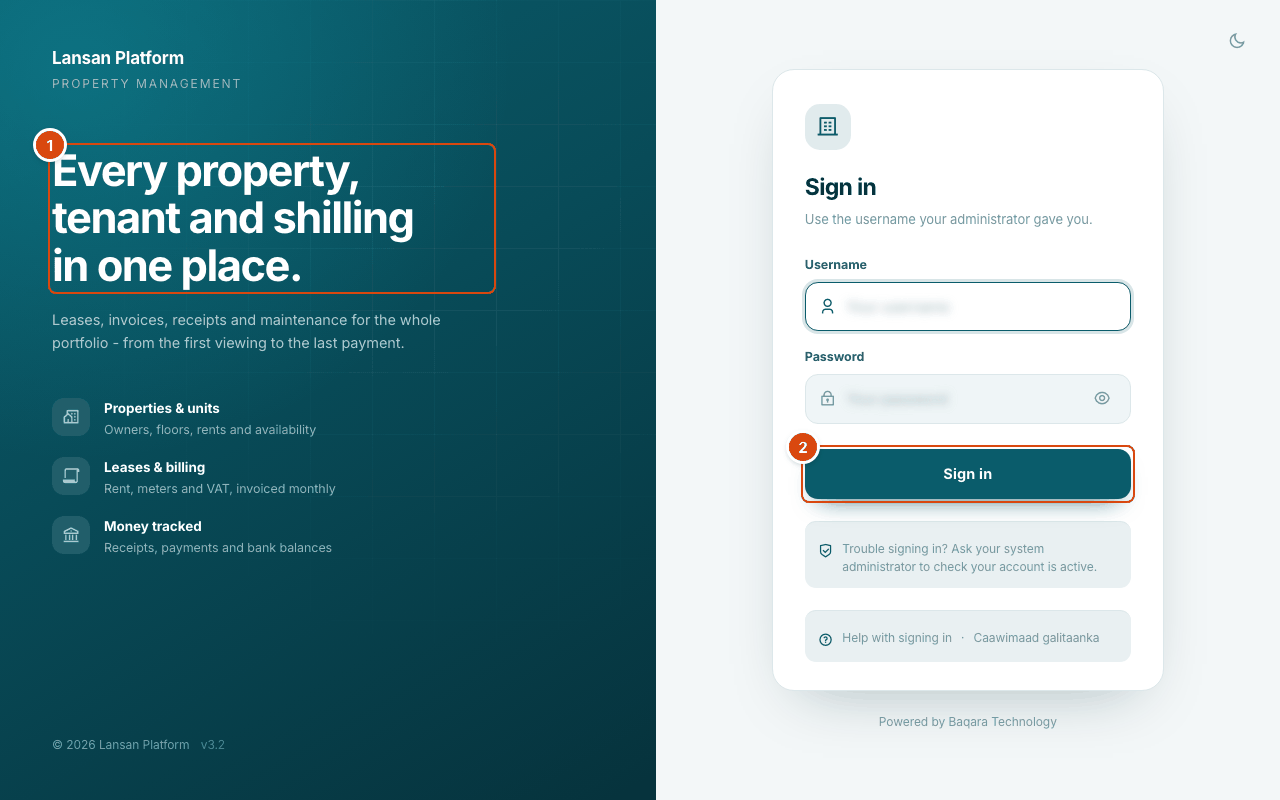
- Page title and what the page is for
- Main action
Sign in
- Open the Rentee address your company gave you. The Sign in screen opens.
- In Username, type the sign-in name your administrator gave you. The system looks your account up by the e-mail address stored on it, so if your administrator gave you an e-mail address to sign in with, type that.
- In Password, type your password. Select the eye button to see what you typed. If Caps Lock is on appears, turn Caps Lock off first.
- Select Sign in. The button reads Please Wait ... while it checks, then your start page opens.
Choose light or dark before you sign in
- On the Sign in screen, select the moon button in the top corner.
- The screen switches between light and dark. Your choice is remembered in this browser.
Sign out
- Select your photo or initial at the top right.
- Select Sign out.
On a shared computer, always sign out when you finish.
Messages on the sign-in screen
| Message | What it means | What to do |
|---|---|---|
| username is incorrect please check and try again. | No account matches what you typed in Username. | Check the spelling. Try the e-mail address on your account. Ask your administrator if it still fails. |
| password is incorrect please check and try again. | The account exists but the password is wrong. | Check Caps Lock and try again. After 5 wrong tries you are locked out for 15 minutes. |
| username is not active please contact system admin. | Your account is suspended. | Ask your administrator to set it back to Active. |
| Too many attempts | 5 failed sign-ins in 15 minutes. | Wait the minutes shown, then try again. See Password and account locked. |
| Approval needed | You signed in from a new device and your account is limited to its own devices. | Ask an administrator to approve the device on the Security page. |
| Device not allowed | This device was removed (revoked) from your account. | Ask an administrator to release your account for the new device. |
Why you were signed out
When the system signs you out, the sign-in screen says why:
| Note on the sign-in screen | Why |
|---|---|
| You were signed out because this account signed in somewhere else. | One account can only be signed in once. Signing in on another computer or phone ends the first session. |
| An administrator ended that session. | An administrator ended it from the Security page. |
| You were signed out after a spell of inactivity. | Nothing was done for 45 minutes. |
| That session reached its time limit. Please sign in again. | A session lasts at most 12 hours, even if you keep working. |
| That session was ended because the browser it started in changed. | The browser changed in a way that looks like a different device, so the session was ended for safety. |
Questions
I typed my username and it says the username is incorrect. Why?
The system looks for your account by the e-mail address stored on it. If your administrator gave you a short username, ask them which name to use, or try the e-mail address on your account. Spelling must match; capital letters do not matter.
Why was I signed out while I was working on another computer?
An account can only be signed in once. When you sign in on a second computer or phone, the first one is signed out. This stops two people sharing one account.
How long can I stay signed in?
You are signed out after 45 minutes with no activity, and in any case after 12 hours. Save your work before you leave the screen for a long time.
Can I sign in on my phone?
Yes, the screen works on a phone. If your account is limited to its own devices, the phone is a new device and an administrator must approve it first. See The mobile app for the app.
I forgot my password. Where is the "Forgot password" link?
There is none. An administrator sets a new password for you. See Password and account locked.
Can I read help before I sign in?
Yes, but only these sign-in articles. Everything else in the Help Center opens once you are signed in.